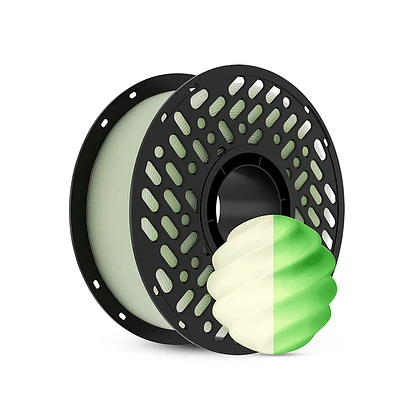
Have you ever been midway through a print only to realize your current spool is running low? Learning how to change filament during 3D printing is an essential skill that saves both material and time. Whether switching colors for a multi-part project or replacing an empty spool with a fresh one, the process is simpler than most beginners think. With the right approach, users can perform this swap smoothly without interrupting the integrity of their model, ensuring that the final object looks seamless and professional.
Preparing for the Filament Swap
Before touching the printer, users should heat the nozzle to the melting temperature of the material currently inside. Different 3D printer filament types and uses require specific temperature ranges, so checking the manufacturer’s recommendations is wise. For example, PLA typically needs a lower temperature than PETG or ABS. Once the hot end reaches the target heat, users can gently pull the old filament out manually or use the printer’s “unload” function if available. During this step, it helps to have the new spool ready nearby. Many users prefer to snip the end of the new strand at a sharp angle, which makes feeding it into the extruder easier and prevents jams. Brands like CaiLab often package their spools with the filament end secured, but once opened, proper handling keeps the material clean and tangle-free.
Loading the New Material
With the old filament removed, the next phase involves inserting the new 3D printer filament into the extruder. Users should guide the angled tip firmly until they feel resistance, then push slightly further to ensure it engages with the drive gear. Some printers have a lever or tension arm that must be pressed to allow the filament to pass through. After loading, a small amount of material will ooze from the nozzle as the new color or type pushes out any remnants of the old. This purge is normal and helps prevent layer adhesion issues later. Observing this flow also confirms that the new material is feeding consistently. For those exploring different 3D printer filament types and uses, this moment reveals how the new material behaves—whether it flows smoothly or requires fine-tuning of the print settings.
Resuming the Print Successfully
Once the new filament is loaded and purging cleanly, users can resume the paused print job. Most modern printers and slicing software include a “pause and resume” feature that retains the exact position, allowing the nozzle to continue exactly where it stopped. It is important to watch the first few layers after resuming to ensure proper bonding between the old and new material. Sometimes a small blob or string may appear, but this can be trimmed away later. Reliable filament, such as the offerings from CaiLab, minimizes these inconsistencies by maintaining tight diameter tolerances. After the print finishes, users often find that mastering this skill opens up creative possibilities, from multi-color models to functional parts that combine different material properties.
Changing filament mid-print might seem intimidating at first, but it quickly becomes second nature with practice. By heating the nozzle properly, loading the new material with care, and trusting the printer’s resume function, users can keep their projects moving forward without restarting from scratch. Understanding different 3D printer filament types and uses further enhances this process, allowing makers to tailor their prints to specific needs. Whether someone is a hobbyist or running a small design studio, knowing how to change filament during 3D printing empowers you to use every last inch of your spool efficiently and creatively.
